Build a sample xedit with icon from scratch
Goal: Add an application xedit.
Requirements
You need to have:
- kubernetes cluster ready to run whith abcdesktop.io installed.
kubectlormicrok8scommand-line tool must be configured to communicate with your cluster.dockercommand line must be installed too.- your own public or private container registry.
Create a simple application xedit
To illustrate a simple application, we will install X11/xedit inside a container.
- Create a Dockerfile to install
xeditapplication fromx11-appspackage
FROM ubuntu
RUN apt-get update && apt-get install -y --no-install-recommends x11-apps && apt-get clean
LABEL oc.launch=xedit.Xedit
LABEL oc.icon=pencil.svg
LABEL oc.icondata="PHN2ZyB4bWxucz0iaHR0cDovL3d3dy53My5vcmcvMjAwMC9zdmciIHdpZHRoPSIxNiIgaGVpZ2h0PSIxNiIgZmlsbD0iY3VycmVudENvbG9yIiBjbGFzcz0iYmkgYmktcGVuY2lsIiB2aWV3Qm94PSIwIDAgMTYgMTYiPgogIDxwYXRoIGQ9Ik0
xMi4xNDYuMTQ2YS41LjUgMCAwIDEgLjcwOCAwbDMgM2EuNS41IDAgMCAxIDAgLjcwOGwtMTAgMTBhLjUuNSAwIDAgMS0uMTY4LjExbC01IDJhLjUuNSAwIDAgMS0uNjUtLjY1bDItNWEuNS41IDAgMCAxIC4xMS0uMTY4ek0xMS4yMDcgMi41IDEzLjUgNC43OTMgMTQuN
zkzIDMuNSAxMi41IDEuMjA3em0xLjU4NiAzTDEwLjUgMy4yMDcgNCA5LjcwN1YxMGguNWEuNS41IDAgMCAxIC41LjV2LjVoLjVhLjUuNSAwIDAgMSAuNS41di41aC4yOTN6bS05Ljc2MSA1LjE3NS0uMTA2LjEwNi0xLjUyOCAzLjgyMSAzLjgyMS0xLjUyOC4xMDYtLjE
wNkEuNS41IDAgMCAxIDUgMTIuNVYxMmgtLjVhLjUuNSAwIDAgMS0uNS0uNVYxMWgtLjVhLjUuNSAwIDAgMS0uNDY4LS4zMjUiLz4KPC9zdmc+"
CMD ["/usr/bin/xedit"]
oc.icondata is a base64 encoded content of the file
pencil.svgto get it ``` wget https://icons.getbootstrap.com/assets/icons/pencil.svg && base64 -w0 pencil.svg
**Dockerfile description** This image is based on ubuntu, and install the `x11-apps` package. Then we define `/usr/bin/xedit` as the CMD, ENTRYPOINT is also supported. * `oc.launch` label is the name of the X11 window's `WM_CLASS` * `oc.icon` is the name of the icon file * `oc.icondata` is a base64 encoded content of the file `pencil.svg`  to get it `wget https://icons.getbootstrap.com/assets/icons/pencil.svg && base64 -w0 pencil.svg` * Build the image for xedit application ```bash REGISTRY=abcdesktopio docker build -t $REGISTRY/samplexedit .You should replace the value of
REGISTRY=abcdesktopioby your own registry's name. If you don't have one, you can use theabcdesktopio/samplexeditas a readonly dockerhub registry.
- Push the image to your registry (only if you have your own registry)
REGISTRY=abcdesktopio
docker push $REGISTRY/samplexedit
- Inspect the image to create a json file
REGISTRY=abcdesktopio
docker inspect $REGISTRY/samplexedit > samplexedit.json
- Send the image to abcdesktop pyos instance
The command read the PYOS_POD name, then copy the sample.json file to /tmp of PYOS_POD,
then send the /tmp/samplexedit.json to REST API server
NAMESPACE=abcdesktop
PYOS_POD_NAME=$(kubectl get pods -l run=pyos-od -o jsonpath={.items..metadata.name} -n "$NAMESPACE" | awk '{print $1}')
kubectl cp samplexedit.json $PYOS_POD_NAME:/tmp -n $NAMESPACE
kubectl exec -i $PYOS_POD_NAME -n abcdesktop -- curl -X POST -H 'Content-Type: text/javascript' http://localhost:8000/API/manager/image -d @/tmp/samplexedit.json
The endpoint image returns a json documment
[
  {
    "cmd": [
      "/usr/bin/xedit"
    ],
    "path": null,
    "sha_id": "sha256:bf33c7ad1e6b7205f5b8117f2b8f00455a4b9aa1575ec67064a9d96820df71ba",
    "id": "abcdesktopio/samplexedit:latest",
    "architecture": "amd64",
    "os": "linux",
    "rules": {},
    "acl": {
      "permit": [
        "all"
      ]
    },
    "launch": "xedit.Xedit",
    "wm_class": null,
    "name": "xedit",
    "icon": "pencil.svg",
    "icondata": "PHN2ZyB4bWxucz0iaHR0cDovL3d3dy53My5vcmcvMjAwMC9zdmciIHdpZHRoPSIxNiIgaGVpZ2h0PSIxNiIgZmlsbD0iY3VycmVudENvbG9yIiBjbGFzcz0iYmkgYmktcGVuY2lsIiB2aWV3Qm94PSIwIDAgMTYgMTYiPgogIDxwYXRoIGQ9Ik0xMi4xNDYuMTQ2YS41LjUgMCAwIDEgLjcwOCAwbDMgM2EuNS41IDAgMCAxIDAgLjcwOGwtMTAgMTBhLjUuNSAwIDAgMS0uMTY4LjExbC01IDJhLjUuNSAwIDAgMS0uNjUtLjY1bDItNWEuNS41IDAgMCAxIC4xMS0uMTY4ek0xMS4yMDcgMi41IDEzLjUgNC43OTMgMTQuNzkzIDMuNSAxMi41IDEuMjA3em0xLjU4NiAzTDEwLjUgMy4yMDcgNCA5LjcwN1YxMGguNWEuNS41IDAgMCAxIC41LjV2LjVoLjVhLjUuNSAwIDAgMSAuNS41di41aC4yOTN6bS05Ljc2MSA1LjE3NS0uMTA2LjEwNi0xLjUyOCAzLjgyMSAzLjgyMS0xLjUyOC4xMDYtLjEwNkEuNS41IDAgMCAxIDUgMTIuNVYxMmgtLjVhLjUuNSAwIDAgMS0uNS0uNVYxMWgtLjVhLjUuNSAwIDAgMS0uNDY4LS4zMjUiLz4KPC9zdmc+",
    "keyword": null,
    "uniquerunkey": null,
    "cat": null,
    "args": null,
    "execmode": null,
    "showinview": null,
    "displayname": "xedit",
    "desktopfile": null,
    "executeclassname": null,
    "runtimeClassName": null,
    "executablefilename": "xedit",
    "usedefaultapplication": false,
    "mimetype": [],
    "fileextensions": [],
    "legacyfileextensions": [],
    "secrets_requirement": null,
    "containerengine": "ephemeral_container",
    "securitycontext": {},
    "created": "2026-04-06T14:40:03.26147483+02:00"
  }
]
Execute the new application xedit
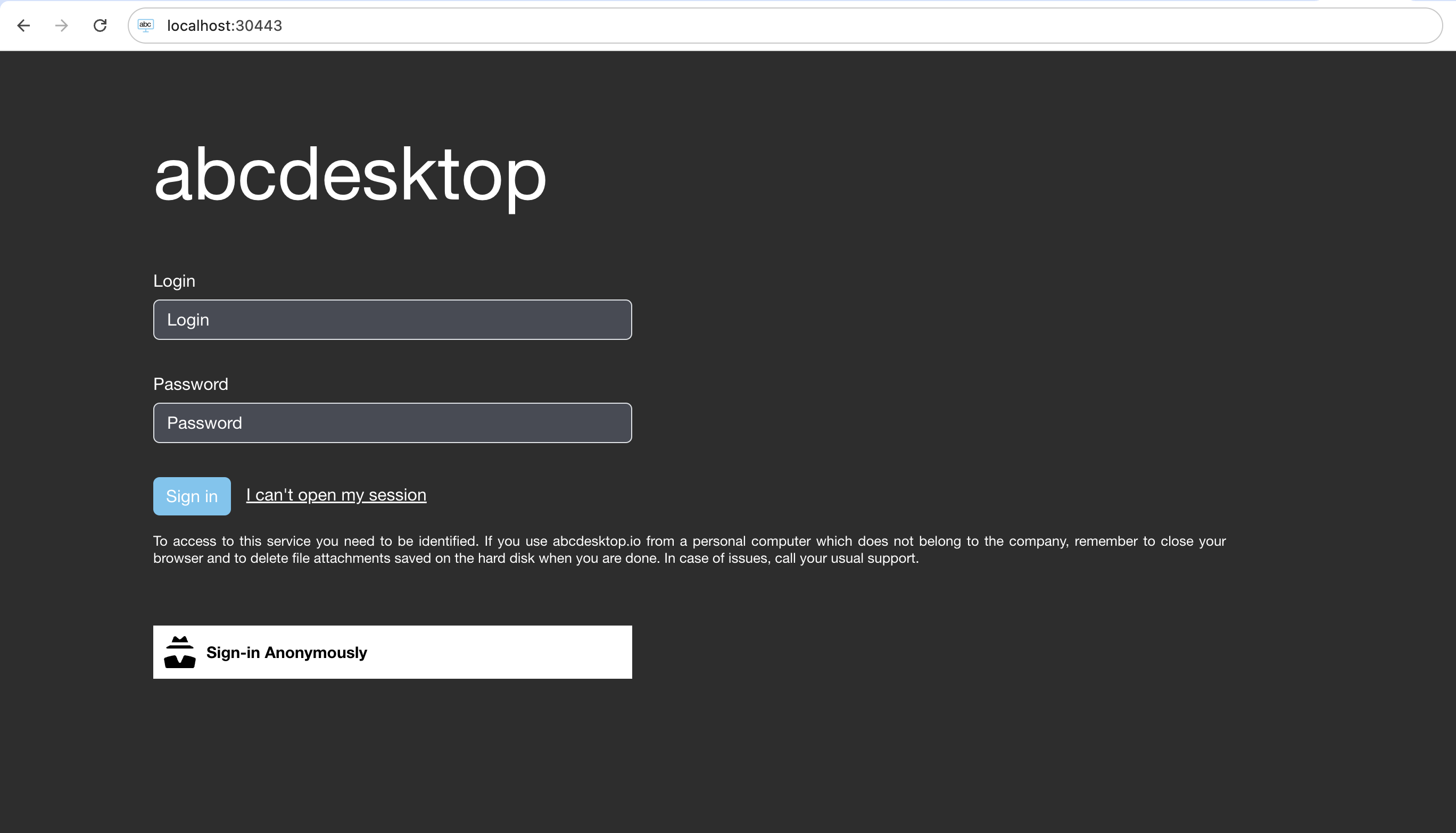
- Open your web browser, and to go your own abcdesktop url, and do a login to create a desktop
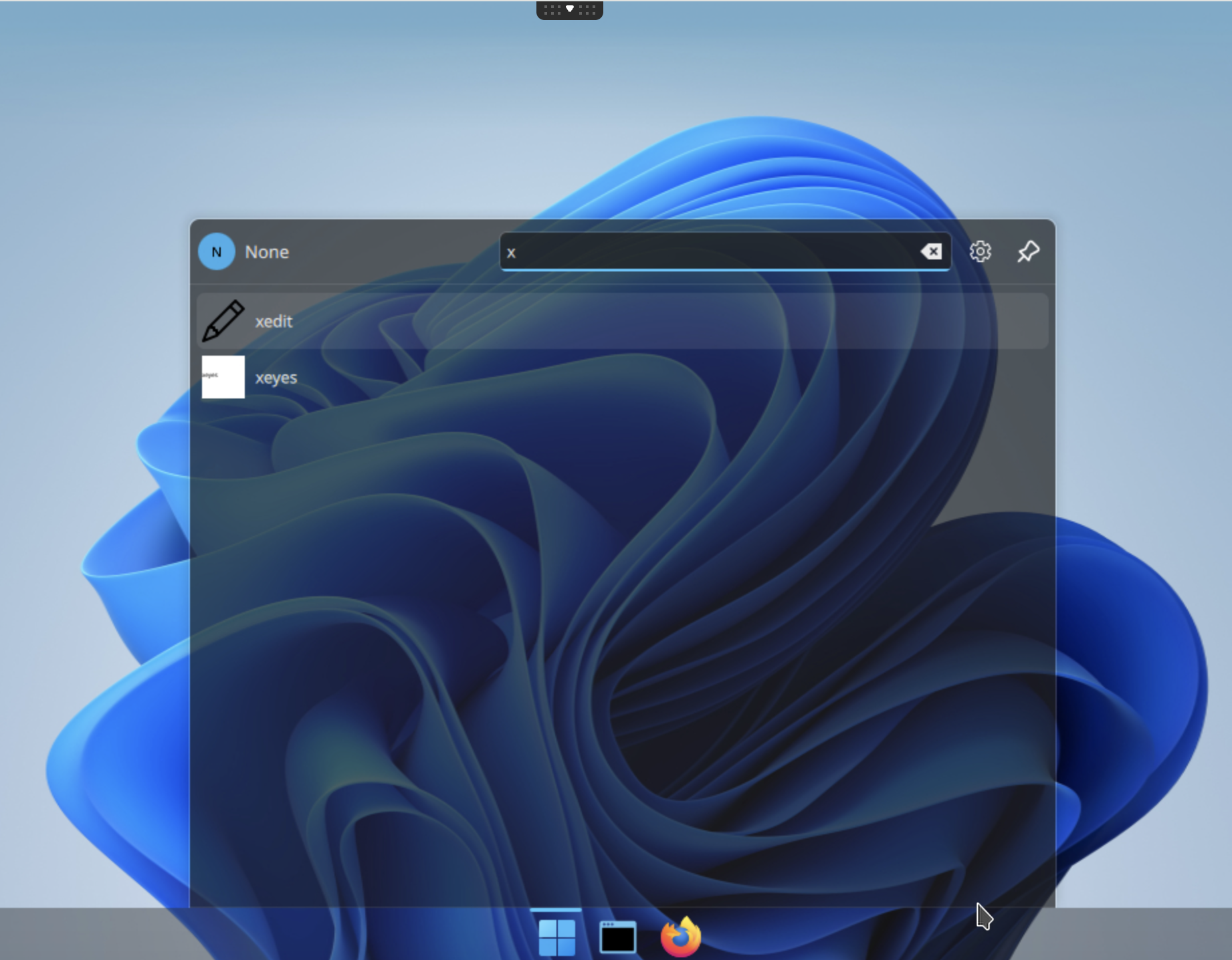
- Look for the new application
xeditpushed
- Start the new application
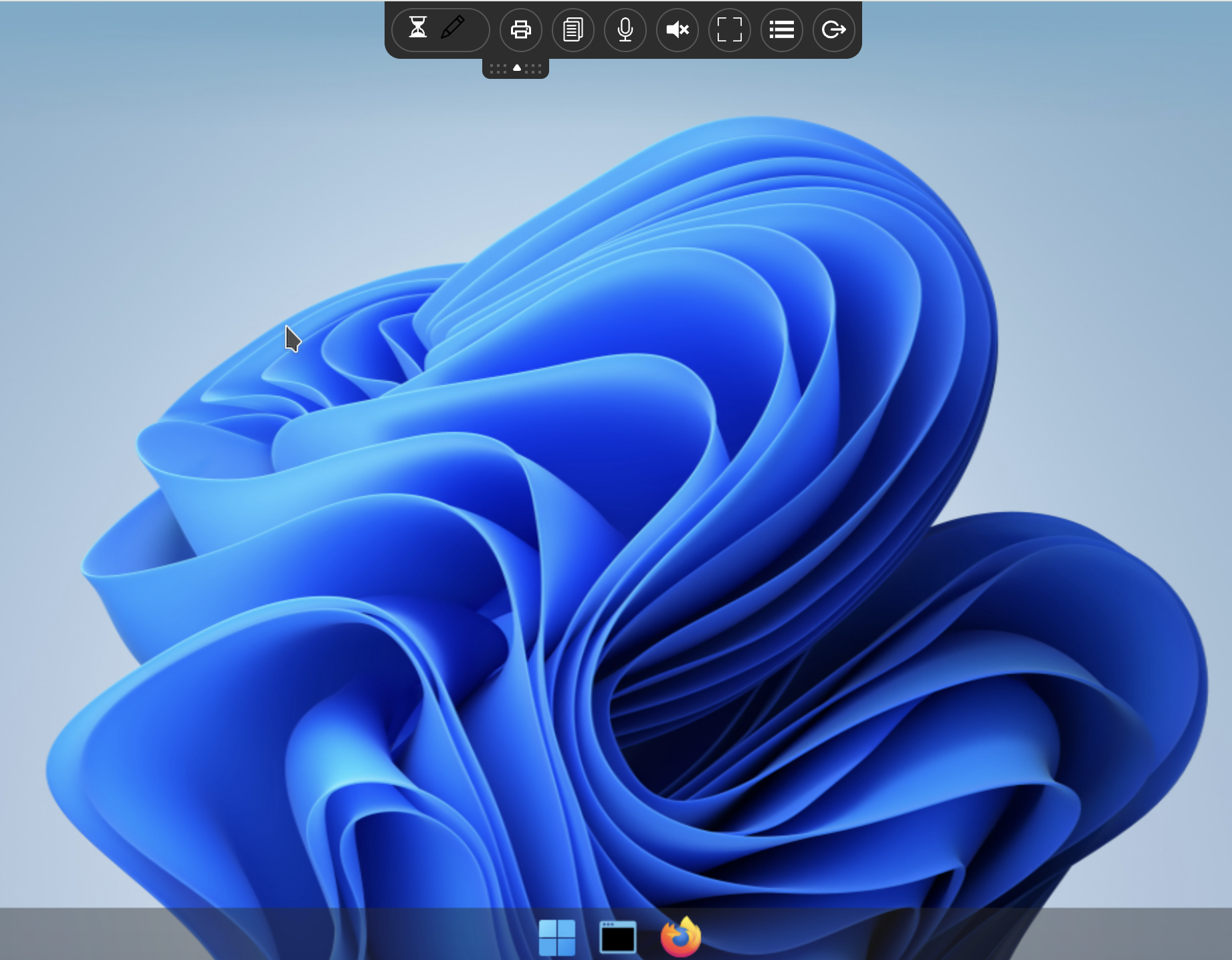
xedit
xedit image is pulling
xedit image is starting
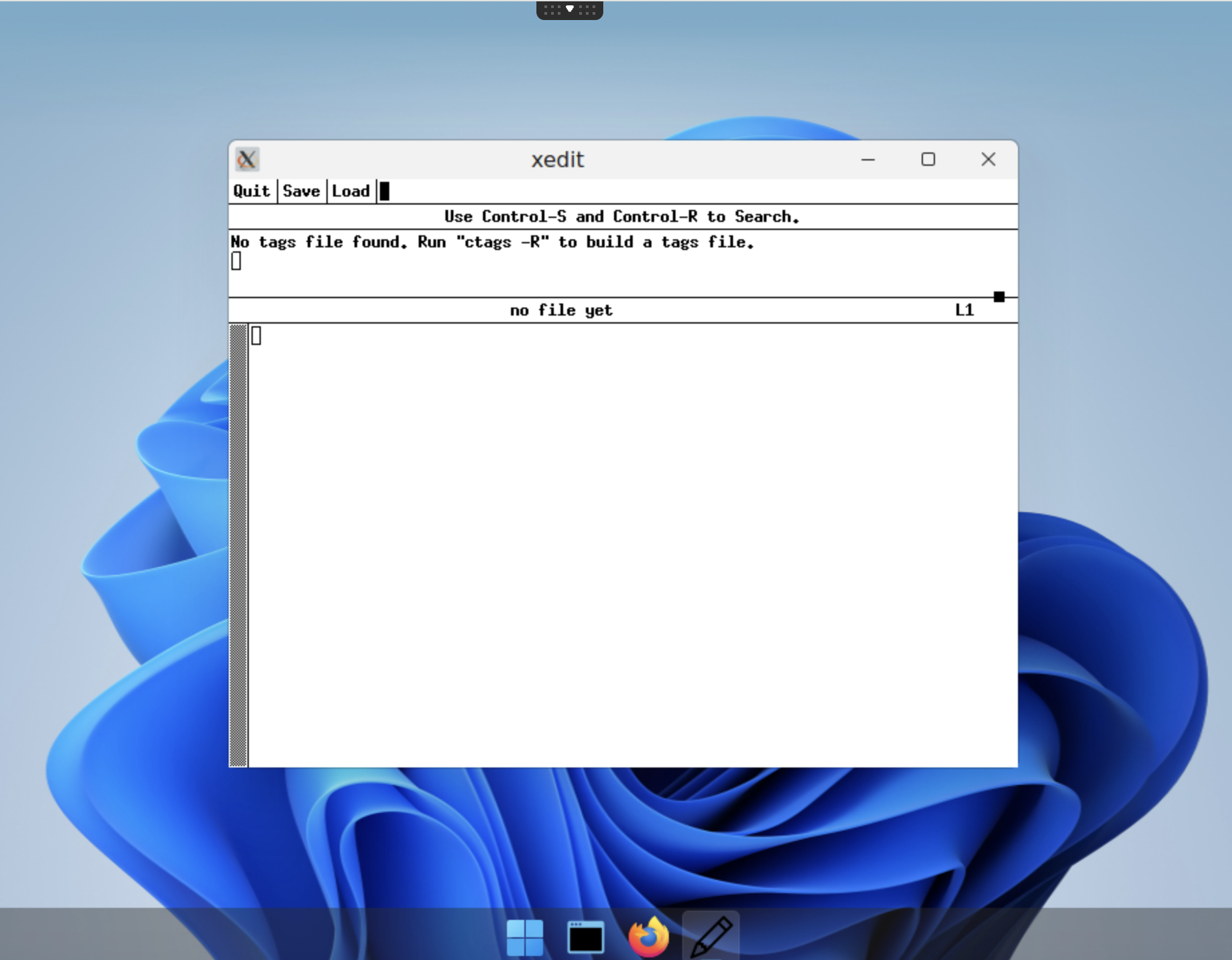
xedit image is started
Great, you have installed a new application xedit as a container with a dedicated icon.